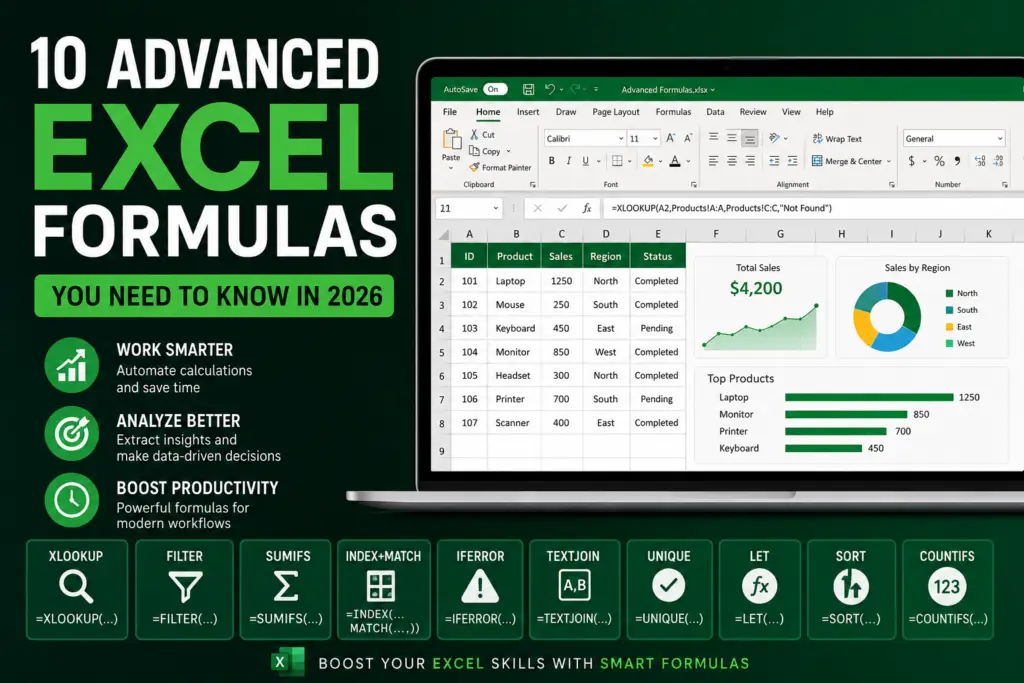
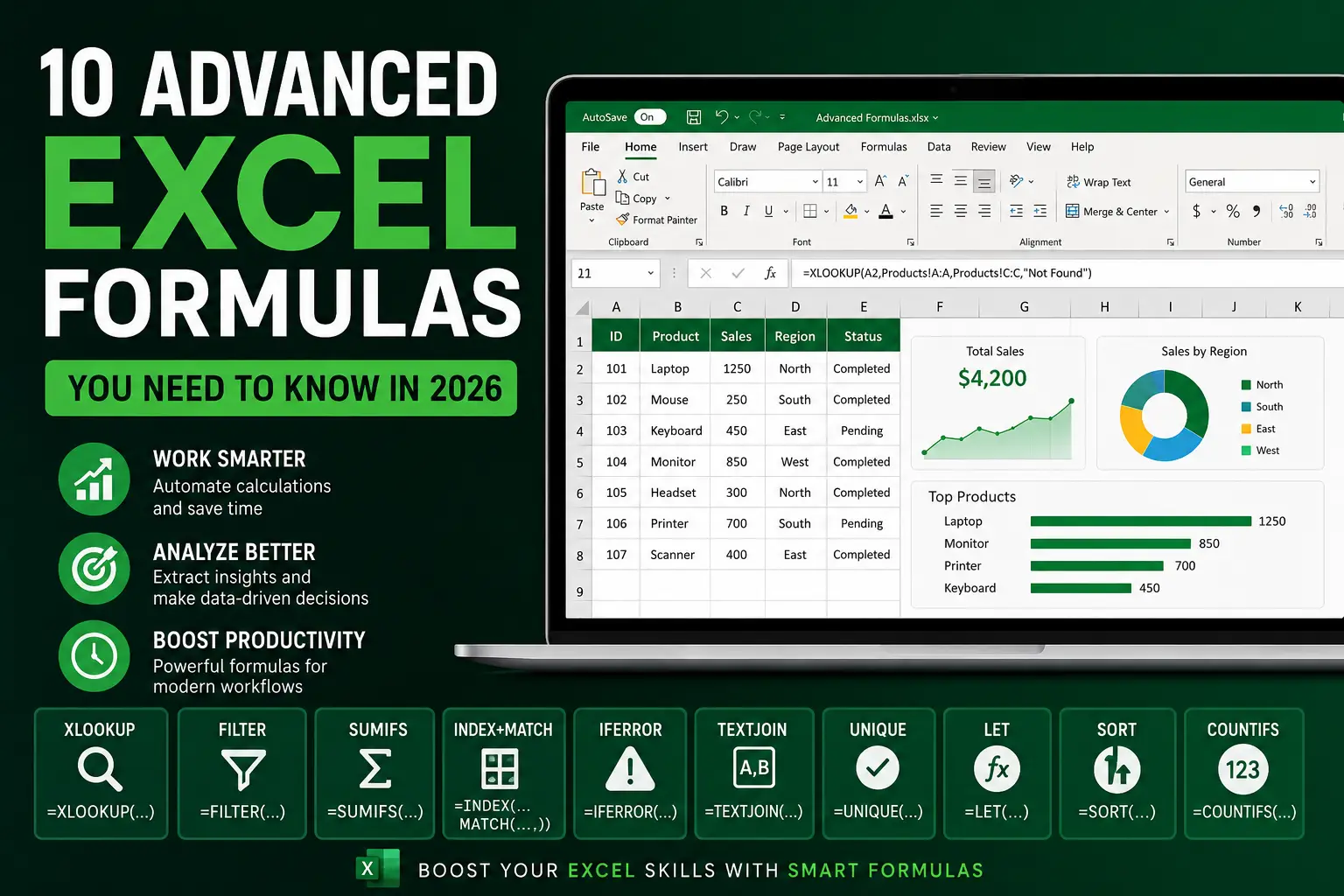

10 Advanced Excel Formulas You Need to Know

If you work with spreadsheets every day, learning advanced Excel formulas can save hours of manual work and make your reports much more professional. Whether you're managing business data, finances, dashboards, or automation systems, these formulas are essential in 2026.

In this guide, we’ll explore 10 powerful Excel formulas that can dramatically improve your productivity and help you analyze data faster.

1 XLOOKUP – The Modern Replacement for VLOOKUP

XLOOKUP is one of the most powerful lookup functions in modern Excel. It allows you to search vertically and horizontally with greater flexibility than VLOOKUP.

Example

=XLOOKUP(A2,Products!A:A,Products!C:C,"Not Found")

Why Use It?

  • More flexible than VLOOKUP
  • Searches left and right
  • Handles missing values cleanly

2 FILTER – Extract Data Dynamically

FILTER helps you display only the rows matching specific criteria.

Example

=FILTER(A2:D100,D2:D100="Completed")

Perfect For

  • Dashboards
  • Dynamic reports
  • Project tracking

3 SUMIFS – Smart Conditional Summation

SUMIFS calculates totals based on multiple conditions.

Example

=SUMIFS(C:C,A:A,"Marketing",B:B,"January")

Common Use Cases

  • Financial summaries
  • Sales analysis
  • Budget reports

4 INDEX + MATCH – Flexible Data Lookup

A classic combination for advanced users.

Example

=INDEX(C:C,MATCH(A2,A:A,0))

Advantages

  • Faster in large datasets
  • More flexible than VLOOKUP
  • Dynamic referencing

5 IFERROR – Clean Error Handling

Avoid ugly spreadsheet errors.

Example

=IFERROR(A2/B2,0)

Great For

  • Dashboards
  • Public reports
  • Client files

6 TEXTJOIN – Combine Multiple Values

Merge text dynamically.

Example

=TEXTJOIN(", ",TRUE,A2:A10)

Useful For

  • Product lists
  • Tags
  • Consolidated reports

7 UNIQUE – Remove Duplicate Values

Generate a clean unique list instantly.

Example

=UNIQUE(A2:A100)

Perfect For

  • Client lists
  • Categories
  • Validation dropdowns

8 LET – Simplify Complex Formulas

LET allows you to assign variables inside formulas.

Example

=LET(x,A2*B2,x*0.2)

Benefits

  • Cleaner formulas
  • Better performance
  • Easier debugging

9 SORT – Organize Data Automatically

Sort your data dynamically.

Example

=SORT(A2:D100,2,-1)

Ideal For

  • Leaderboards
  • Reports
  • KPI dashboards

10 COUNTIFS – Count with Multiple Conditions

Count rows matching multiple criteria.

Example

=COUNTIFS(A:A,"Completed",B:B,"High")

Perfect For

  • Task management
  • CRM tracking
  • Productivity dashboards

Final Thoughts

Mastering advanced Excel formulas can transform the way you work with data. These functions are used daily in professional dashboards, automation systems, finance reports, and business analytics.

If you regularly use Excel, Google Sheets, or automation tools, investing time in these formulas will significantly improve your workflow and productivity.